Remote access
Work on your office computer from anywhere
Setup takes about five minutes. Your connection runs through Synergi's own secure server.
Have these two things ready
- Your setup code from Synergi.
- Your office computer's ID and password, also from Synergi.
Don't have them? Email support@synergicomm.com and we'll send them.
- 1
Download and install the app
The app is called RustDesk. Install it on the computer you'll work from, such as your home PC or laptop.
Not sure which Mac you have? Open the Apple menu and choose About This Mac. On Windows, open the downloaded file and choose Accept and Install.
- 2
Add your setup code
Copy the setup code we sent you. Then, in RustDesk:
- Click the menu button (three lines) at the top right to open Settings.
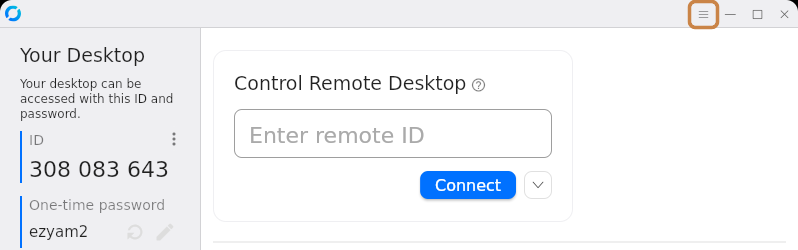
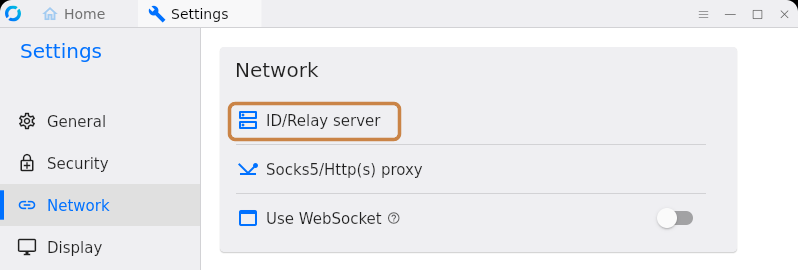
- Click Network, then ID/Relay server. If you see Unlock network settings, click that first.
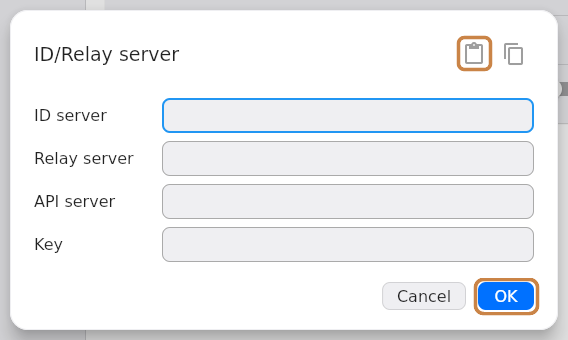
- Click the paste icon to fill in the boxes from your setup code, then click OK.
The main window should now say Ready at the bottom.
- Click the menu button (three lines) at the top right to open Settings.
- 3
Connect to your office computer
- Type your office computer's ID under Control Remote Desktop and click Connect.
- Enter the password and tick Remember password.
- Sign in to Windows with your usual work username and password.
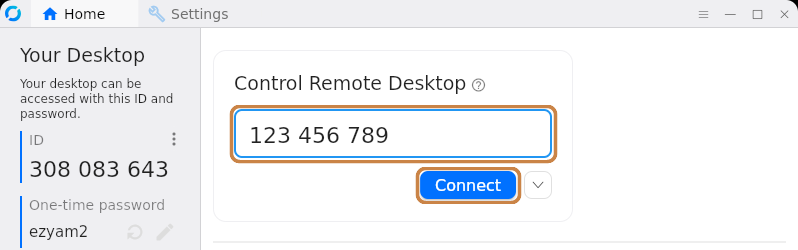
The numbers in these pictures are examples. Use the ID and password we sent you.
Next time, your office computer appears in the app's recent list. Double-click it.